
Most teams have a job they do the same way, over and over, for every row of a list. Review this contract. Check this invoice. Summarize this vendor. Someone opens each file, does the same steps, pastes the answer back into a spreadsheet, and moves to the next one.
In Athena, that job can be written down once as a workflow. We call these Agent Operating Procedures, or AOPs: versioned workflows with the steps, the tools, the approvals.
And now you can run one from a cell.
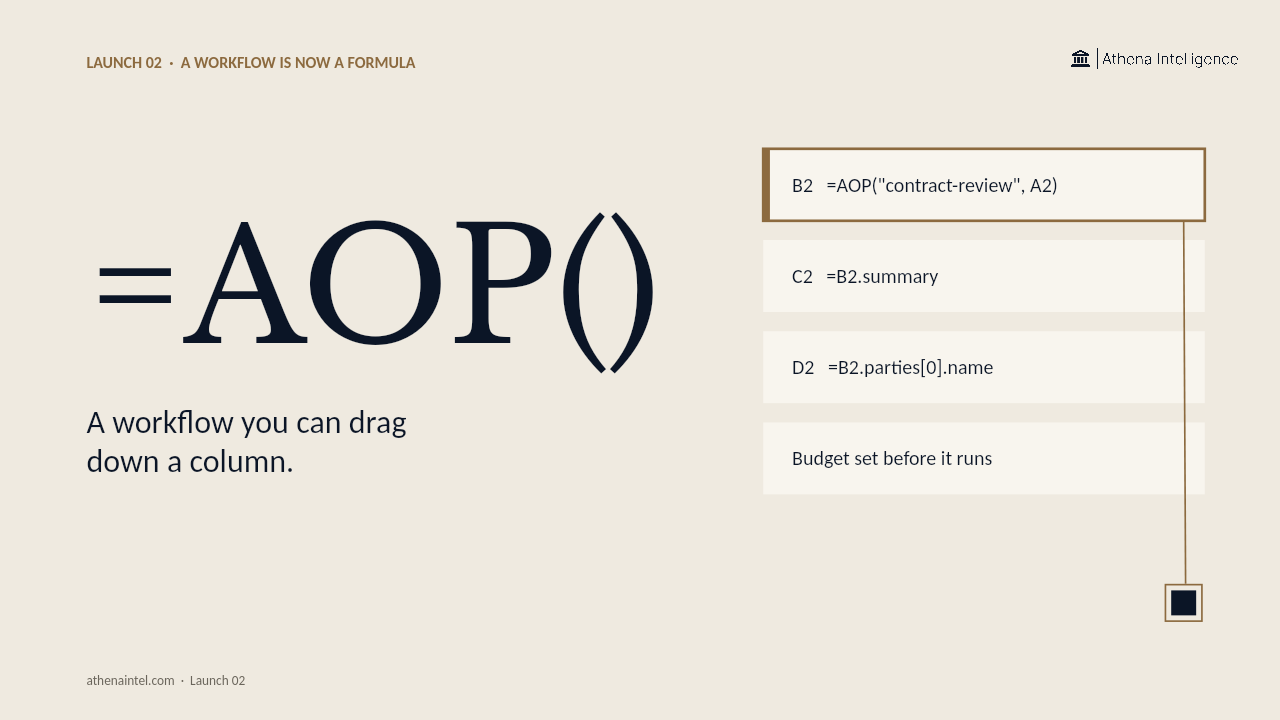
=AOP("contract-review", "file", A2)
Type it once. Drag it down the column. Every row runs the workflow on its own file.
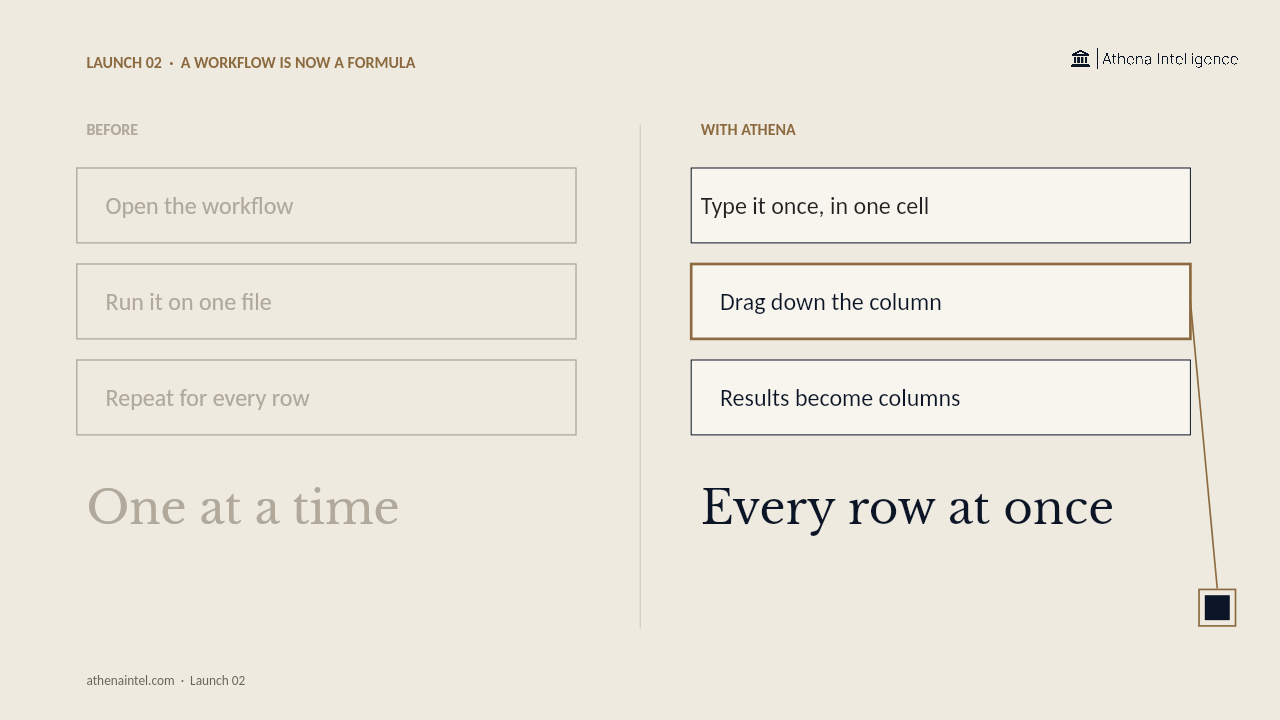
The answer comes back as data, not a paragraph. In the next column, =B2.summary. After that, =B2.parties[0].name. The workflow's output turns into columns you can sort, filter, and chart, the way you already work.
You set the spending limit first. Before anything runs, Athena asks how much you are willing to spend on this batch. If a run would go over, it stops.
Every row is on the record. Each run shows up with your name on it. If one fails partway through, you see exactly which step and why, not just a red cell.
Other formulas work the same way: =ATHENA for a plain-English question, =ATHENAQUERY for a governed question against your data, =ATHENAASSET to drop a document or chart into a cell. They also work in desktop Excel through the Office add-in.
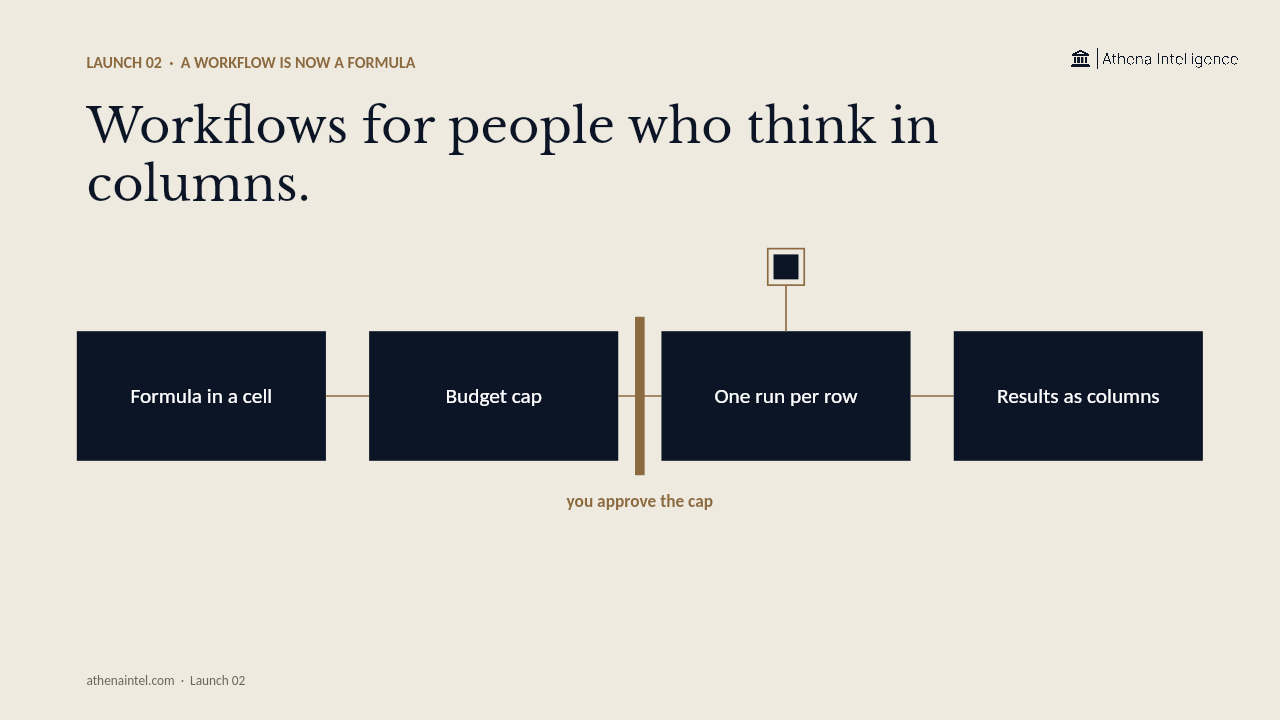
Running a workflow a hundred times costs a hundred times as much as running it once. That is why the spending limit comes before the drag, not after.
Workflows (AOPs), for people who think in columns.
Type once, drag down, answers as columns
Most teams have a job they do the same way for every row of a list: review this contract, check this invoice, summarize this vendor. Someone opens each file, does the steps, pastes the answer into a spreadsheet, and moves to the next one. In Athena, that job can be written down once as an Agent Operating Procedure (AOP), a versioned workflow Athena runs: the steps, the tools, the approvals.
Now you can run an AOP from a spreadsheet cell. Type the formula once in B2, drag it down the column, and every row runs the workflow on its own file. The formula looks like this: =AOP("contract-review", "file", A2). Drag it down 500 rows and you get 500 governed runs. Each execution is attributable, and capped by a spending limit you set before anything runs.
Structured output you can sort and filter
The answer comes back as data, not a paragraph. Each AOP result is a structured object. In the next column, write =B2.summary to extract the summary field. After that, =B2.parties[0].name pulls the first party's name. The workflow's output turns into columns you can sort, filter, and chart, the way you already work.
Every row is on the record. Each run shows up with your name on it in AGS (Athena Governance System). If one fails partway through, you see exactly which step and why, not just a red cell. You can compare the before and after in Editor, and roll back a specific range while keeping the rest of the batch.
Set the spending cap before the batch runs
Before anything runs, Athena asks how much you are willing to spend on this batch. If a run would go over, it stops. The spending limit is a gate, not a surprise. Running a workflow a hundred times costs a hundred times as much as running it once, so the budget comes before the drag, not after.
The same pattern works for other formulas. =ATHENA() answers a plain-English question. =ATHENAQUERY() runs a governed question against your semantic model. =ATHENAASSET() drops a document or chart into a cell. All of them work in Athena Sheets and in desktop Excel through the Office add-in.
Workflows for people who think in columns
Analysts do not want to open a workflow builder. They want a column. The grid is the interface most teams already use for repetitive work: contract reviews, invoice checks, vendor summaries. Now the workflow is a column, with the same attribution and governance as a single run.
Each execution is traceable. Click any cell an agent touched and read the session, the message, the before and after. Open the Activity Monitor and see every run with the person who triggered the batch. If one row needs to be rolled back, roll it back. Keep the rest.